

How to Make Your Smartphone Run Faster
“How to make your smartphone run faster” – One of the biggest questions we all are searching for answers to these days. In India, almost 70% of smartphones are Android, and we Indians have a habit of keeping things for a very long time. Most of us are using a smartphone that we purchased years ago, like using the same smartphone for over 3-4 years.
As most of our smartphones are outdated, we all are facing problems like hanging, performance degradation, apps taking forever to load, and rapid battery drainage. Yeah, there are so many more issues, but these are the most common ones we’re dealing with.
Well, I have good news for you all. All these issues that I’ve mentioned here are not hardware failures, but they are more likely caused by digital clutter, misconfigured settings, or heavy background processing. We can fix these in very few simple steps without spending a single rupee.
All the new app updates that are coming out are designed according to the latest smartphones. That’s why even after updating some apps, we face major issues on our older devices. The apps become heavier and require more resources than our phones can comfortably provide.
Now let’s get started. In this post, I’m going to tell you 5 methods which were tested on multiple smartphones. After using these methods, we can see a significant speed boost and better performance upgrades. Trust me, these methods actually work, and thousands of users have already benefited from them.
Method 1: Reduce Animation Scales
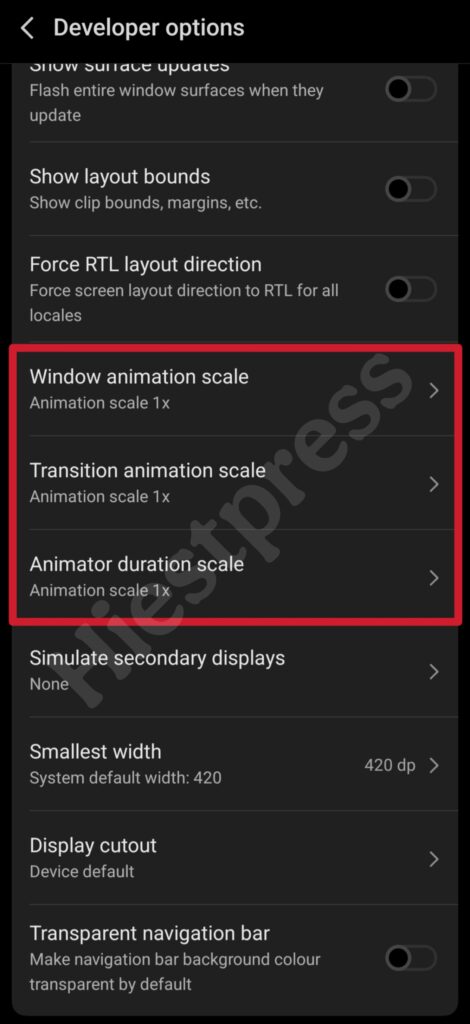
Before I say anything, let’s understand what animation scales actually mean. Animation scales control the visual transition of all the actions we perform on our smartphones – like opening apps, closing apps, switching screens, and lock and unlock animations.
In our smartphones, it is by default set at 1x animation speed, which looks smooth and good. But after some time, we feel like our phone is becoming slow or sluggish. This is because we’re waiting for these animations to complete before the next action starts.
Important Note: Reduction in animation speed will not improve actual performance or processing power, but we can definitely feel the smoothness and responsiveness of our actions. Our phone will feel much faster even though the processor speed remains the same.
How to Adjust Animation Scales on Our Smartphones
Step 1: Enabling Developer Options
- Go to your Settings > About Phone
- Scroll down to find “Build Number”
- Tap continuously on Build Number until it asks for your PIN/Password
- Enter your password and click continue
- It will show you a message that says “You are now a Developer!”
Step 2: Modify Animation Settings
- Go back to Settings and search for “Developer Options”
- Scroll down and search for the “Drawing” section in Developer Options settings
- Locate these three settings:
- Window Animation Scale
- Transition Animation Scale
- Animator Duration Scale
- Now you have to change each setting from 1x to 0.5x
What Will Happen After Changing Animation Scales?
After reducing the animation scales from 1x to 0.5x, we can see around 50% faster response from our smartphone. We can see that apps are opening faster and closing faster. The overall system navigation feels much faster and lighter.
The best part? This will not increase any processing load on your CPU, so you don’t have to worry about overheating or battery drain. It’s purely a visual change that makes everything feel snappier and more responsive.
Many users report that after applying this simple trick, their friends and family members ask them “Did you buy a new phone?” That’s how dramatic the difference feels in daily usage.
If you want even more speed, you can set all three animation scales to “off” completely. However, this might feel too abrupt and robotic. The 0.5x setting is the perfect balance between smoothness and speed.
Method 2: Disable Unnecessary Background Apps
You might be thinking, “What is this, and how does disabling it increase our smartphone performance?” So let me tell you everything briefly.
Background applications use our 3 most critical resources: RAM, CPU, and Battery. When too many apps run in the background, our phone becomes slow and laggy.
Understanding Resource Usage
RAM (Random Access Memory):
If the RAM is being used by apps which we are not using, then we will not get enough RAM to run new applications and programs. For example, if you have a 4GB RAM device, then half of the RAM is used by system applications. Almost the other half is being used by apps which we are not currently using, which will cause a shortage. The apps we want to run will not be able to run properly and might feel laggy.
Many people don’t realize that having 20-30 apps open in the background is like trying to juggle too many balls at once. Eventually, something will drop.
CPU (Central Processing Unit):
Just like RAM, the CPU is being used by apps which we have closed and are not currently working on. These apps are running in the background and using our smartphone’s resources to keep themselves alive.
So it’s actually both good and bad. If we reopen any app which we have recently closed, it will open faster because it’s still in memory. But it will take much more resources to stay alive in the background, which slows down everything else.
Battery:
It is obvious – battery is like fuel, and our smartphone is like a car. The more we use the car, the more fuel will burn. Just like this, the background processing apps will consume too much battery to keep themselves alive. Constant network activity and processing will only drain the battery quickly.
Almost 30-50 background apps are running in our phones continuously, and very few of them give even a tiny bit of benefit to the users. So it is a very major drawback that we need to fix.
Identifying Intensive Resource-Using Background Apps
Our first step is to find out which apps out of all the apps are actually consuming more resources, and we barely use them. For that, follow the steps below:
- Settings > Apps > See All Apps (Here you can see all the apps that you have in your smartphone)
- Settings > Battery > Battery Usage (This will tell you which app has actually consumed your battery and by how much)
You’ll be surprised to see which apps are secretly draining your battery. Sometimes, apps you haven’t opened in weeks are still consuming significant resources in the background.
Methods for Disabling Background Activity
There are several methods for disabling background activity, but I’m going to tell you the 2 most effective methods.
Method 1: App-Specific Restrictions
- Go to Settings, then click on Apps
- Select the application showing high usage
- Go to Battery, then check for apps running in the background
- Restrict them by changing the setting to “Restricted”
- Repeat this for all the unnecessary apps
Method 2: Force Stop
- Settings > Apps, find out apps and check for background permissions
- See what is the impact of the app running in the background
- If the impact is high, just go to App Info
- You’ll see an option called “Force Stop” there – just click on it and close it
This is how you can restrict certain applications on your smartphone and make your smartphone faster by almost 30%. There are so many apps which run in the background, like shopping apps which we only use when we’re actually shopping, and apps like weather which keep consuming resources unnecessarily.
Personally, I restrict all social media apps, shopping apps, and food delivery apps from running in the background. I only allow WhatsApp and my banking apps to run freely because I need instant notifications from them.
Method 3: Update Your Smartphone OS (Operating System)
You all must have updated your smartphone at some point. Here I’m not talking about updating the applications from your app store or Play Store. I am talking about updating your Operating System (Software Update).
Many people ignore these updates or postpone them for months. But these updates are actually very important for maintaining good performance.
Benefits of Upgrading Software (OS)
1. Optimizes Resource Allocation
- Improves both CPU and GPU scheduling algorithms
- Better RAM management among apps
- Enhances overall performance and efficiency
- Makes your phone work smarter, not harder
2. Bug Fixes and Stability Improvements
- Fixes slowdown issues by resolving memory leaks
- Sometimes fixes app compatibility problems
- Fixes all the security issues and vulnerabilities
- Resolves crashes and freezing problems
3. Feature Upgrades
- Most of the time, fixes battery issues like extra power consumption
- Better thermal management results
- Latest features – upgrading to a new Android version brings new features and improvements
- Improved camera processing and photo quality
How to Update Your Smartphone
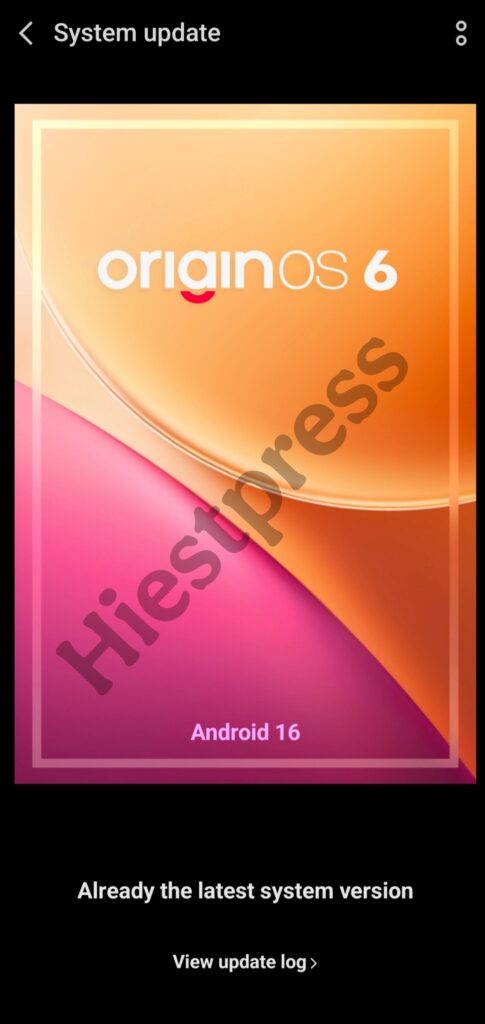
If you’re going to ask me how to update, then let me just tell you: go to Settings > System Updates (check for updates, and if available, just update it).
Make sure you’re connected to Wi-Fi because these updates can be quite large – sometimes 1-2GB in size. Also, make sure your phone has at least 50% battery before starting the update.
Important Tips:
- Back up your important data before updating, just to be safe
- Don’t interrupt the update process once it starts
- Your phone might restart multiple times during the update – this is normal
- The first boot after an update might take 5-10 minutes longer than usual
Some people worry that updates will make their old phone slower. While this can sometimes happen with very old devices (4-5 years old), most of the time, updates actually improve performance. The key is to install security patches and minor updates regularly.
Method 4: Remove or Disable Bloatware
First, let’s try to understand what bloatware actually is. Bloatware refers to those applications that you have never installed – they were just pre-installed by the manufacturer or your mobile carrier.
They consume battery, RAM, and CPU, and they perform a very crucial role in downgrading your smartphone’s performance. These apps are very hard to uninstall, and they run in your background. After some time, you feel like your smartphone is hanging for no reason.
Some of the common bloatware can be seen as carrier services (meaning duplicate calling apps), navigation apps, manufacturer-specific apps, and so much more. These apps are really hard to uninstall because they’re considered “system apps.”
How to Identify Bloatware
- Apps that we have never used and never been opened are the first suspects
- Duplicate apps like multiple calling apps, multiple calendars, SMS apps, and so on
- Manufacturer-specific versions of apps we already use (for example, Samsung’s browser when we use Chrome)
- Pre-installed games that we barely even play are also bloatware
- Apps with names you don’t recognize or apps in foreign languages
Removing or Disabling These Apps
Well, there are multiple ways of uninstalling apps, but some bloatware apps cannot be uninstalled completely. You can uninstall some, but not all the bloatware.
Standard Method:
- We all know about standard uninstalling – just go to Settings, search for Applications
- Select Apps and see which apps have never been used
- Click on the apps and see what options we have there
- If we have the “Uninstall” option, just uninstall it
- But if we don’t have uninstall, there will be an option to “Disable” – just click on it
Advanced Method (For Tech-Savvy Users):
There are some third-party apps like “Package Disabler” or “ADB commands” that can remove system bloatware, but these methods require technical knowledge. If you’re not comfortable with these, just stick to the disable option.
Removing or disabling bloatware apps can be very effective for a smartphone over time. You’ll have a lot of free RAM and storage from the beginning, which means your phone will run smoother and faster.
I personally disabled about 15-20 pre-installed apps on my phone, and I immediately noticed better performance. My phone felt lighter and more responsive.
Method 5: Factory Reset (Last Resort)
You should perform a factory reset only when you have tried all the other 4 methods, and you’re still facing issues like:
- Your smartphone is still running slow
- You’re still facing problems like stuck or freezing applications
- Suspected malware detected that antivirus cannot remove
- An update caused some serious issues or downgrade in performance
- Your phone has become completely unusable
Factory reset is called the “last resort” because it will erase everything from your phone. But sometimes, it’s the only way to bring your phone back to life.
Benefits of Factory Reset
- It will clear all the corrupted system files
- Eliminate all the conflicts between app data
- Fix all the misconfigured system settings
- Best way to kick out all the harmful malware that are not detected by antivirus
- Almost feels like you’re using a new smartphone
- Clean storage from the starting – no need to manually search for apps
- Optimized and enhanced performance
- Fixes all the registry errors and cache corruption
- Removes all the junk files that have accumulated over years
- Gives you a fresh start to set up your phone the right way
Before You Factory Reset – Important Backup Steps
IMPORTANT NOTE: Before using factory data reset, I strongly recommend you take a backup of your important files and contacts because everything will be erased once you perform a factory data reset.
What to Backup:
- Photos and videos (upload to Google Photos or any cloud service)
- Contacts (make sure they’re synced to your Google account)
- WhatsApp chats (go to WhatsApp Settings > Chats > Chat Backup)
- Important documents and files
- App data (some apps have backup options in their settings)
- Note down your important app passwords
How to Perform Factory Reset:
- Go to Settings > System > Reset Options
- Select “Factory Data Reset” or “Erase All Data”
- Read the warning carefully
- Enter your PIN/Password to confirm
- Tap “Reset Phone” or “Erase Everything”
- Your phone will restart and begin the reset process
- This might take 5-15 minutes
After the reset, your phone will be like a brand new device. You’ll need to set everything up again from scratch, but the performance improvement will be worth it.
Many people report that their 3-4 year old phones feel almost new again after a factory reset. It’s like giving your phone a second life.
Conclusion
For smartphones, it is not possible that a smartphone stays the same and performs the same forever. Slowdown and performance degradation are inevitable. Whatever you do or how good your smartphone is, you’ll feel degradation in your smartphone’s performance after some time.
But that doesn’t mean you need to buy a new phone every 2 years. With these 5 simple methods, you can easily extend your phone’s life by 1-2 more years. I’ve personally used all these methods on my own phone and on my family members’ phones, and the results have been amazing.
The best part? All these methods are completely free and don’t require any technical expertise. Anyone can follow these steps and make their smartphone run faster.
I hope you have followed everything from starting to the end, and I’m sure you have almost fixed your phone’s performance issues. You all found the answer to “How to make your smartphone run faster.”
Quick Recap:
- Reduce animation scales to 0.5x for instant perceived speed boost
- Disable unnecessary background apps to free up RAM and battery
- Update your OS regularly for bug fixes and performance improvements
- Remove or disable bloatware to free up resources
- Factory reset as a last resort when nothing else works
Remember, a little maintenance goes a long way. Spend just 30 minutes applying these methods, and your phone will thank you with months of better performance.
If you found this helpful, share it with your friends and family who are also struggling with slow phones. Let’s help everyone get the most out of their smartphones without spending money on unnecessary upgrades!
Frequently Asked Questions
After applying these 5 methods, most users see a 30-50% performance improvement in daily tasks. Apps open faster, multitasking becomes smoother, and battery life improves significantly.
Yes! These methods work on all Android smartphones – Samsung, OnePlus, Xiaomi, Realme, Oppo, Vivo, etc. The steps might vary slightly depending on your phone’s UI.
Absolutely not! It’s completely safe and only changes visual transitions. You can change it back anytime.
Not at all! These methods are designed for everyone with simple step-by-step instructions.
Yes, factory reset erases everything. Always backup your data first – photos to Google Photos and WhatsApp chats in settings.
No! These are all software-based changes that don’t void your warranty.
Yes! Older phones benefit the most from these optimizations. Consider factory reset for best results.
read more :-
How to become a pro in BGMI
sources ~
XDA
Developer Android
Samsung Support
Oneplus Forum

[…] also checkout : How to make your smartphone run faster […]