

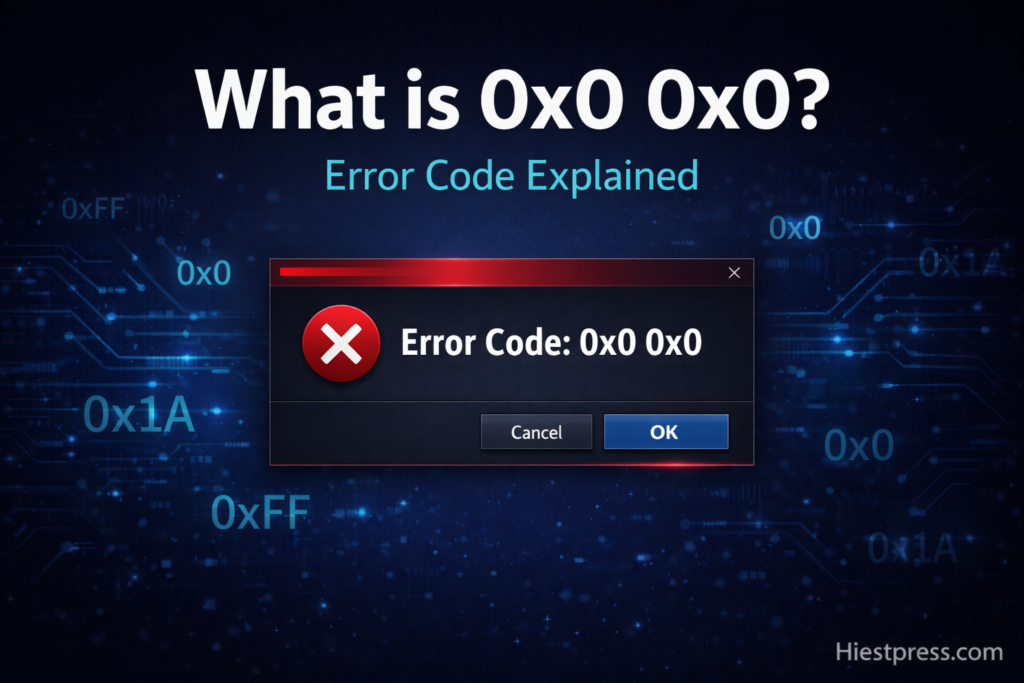
The 0x0 0x0 error is one of the most searched Windows issues online, yet most blogs get its explanation wrong. It is not a single catastrophic system failure. It is not a virus. And you almost certainly do not need to pay for any third-party tool to fix it.
This guide covers exactly what this error code means, every real cause behind it, and seven proven methods to fix it — ordered from the quickest fix to the most thorough, so you can stop at whichever step works for you.
What Does 0x0 0x0 Mean?
The prefix 0x in any Windows error code means the number that follows is written in hexadecimal (base-16). So 0x0 simply equals zero.
In standard programming and operating system design, zero is commonly used as a success code — meaning “no error.” But it can also appear as a default fallback when a process fails without generating a proper error code. That is exactly why 0x0 0x0 is so confusing: the system is essentially saying something went wrong, but it has no specific information to offer about what.
When you see it written twice — 0x0 0x0 — it usually represents a pair of values, both zero. Some Windows dialogs, crash reporters, and application logs display this pair as a status code and sub-code, both of which defaulted to zero instead of a meaningful identifier.
The key takeaway: 0x0 0x0 is not a fixed, named error with one cause. It is a generic placeholder that appears when a failure occurs but no detailed error information was recorded. The actual problem could be anything from a corrupt system file to a conflicting startup program.
Common Causes of the 0x0 0x0 Error

Because 0x0 0x0 is a catch-all code, its causes vary. These are the most frequently confirmed reasons based on user reports and technical documentation:
- Corrupted or missing system files — Essential Windows files get damaged due to sudden shutdowns, failed updates, or bad sectors on the drive.
- Outdated or incompatible drivers — Device drivers, especially graphics drivers, are a leading cause. An incompatible driver can cause processes to fail silently.
- Failed or incomplete Windows updates — An update that installs partially can leave the OS in an inconsistent state.
- Conflicting third-party applications — Two programs competing for the same resource, or a startup application interfering with the OS, can trigger this error.
- Malware or security software interference — Malicious software can corrupt system files or alter settings; aggressive security software can also block legitimate processes.
- Faulty RAM or bad disk sectors — Hardware-level issues cause random failures that often show up as generic error codes like 0x0.
- Corrupt registry entries — The Windows registry can accumulate invalid entries over time, especially after improper uninstalls or system crashes.
- Faulty or corrupted program installation — Attempting to run software that was installed incompletely or from a bad source.
How to Fix the 0x0 0x0 Error (7 Methods)
Work through these methods from top to bottom. Most users resolve the error within the first three.
Method 1: Close Conflicting Programs and Restart
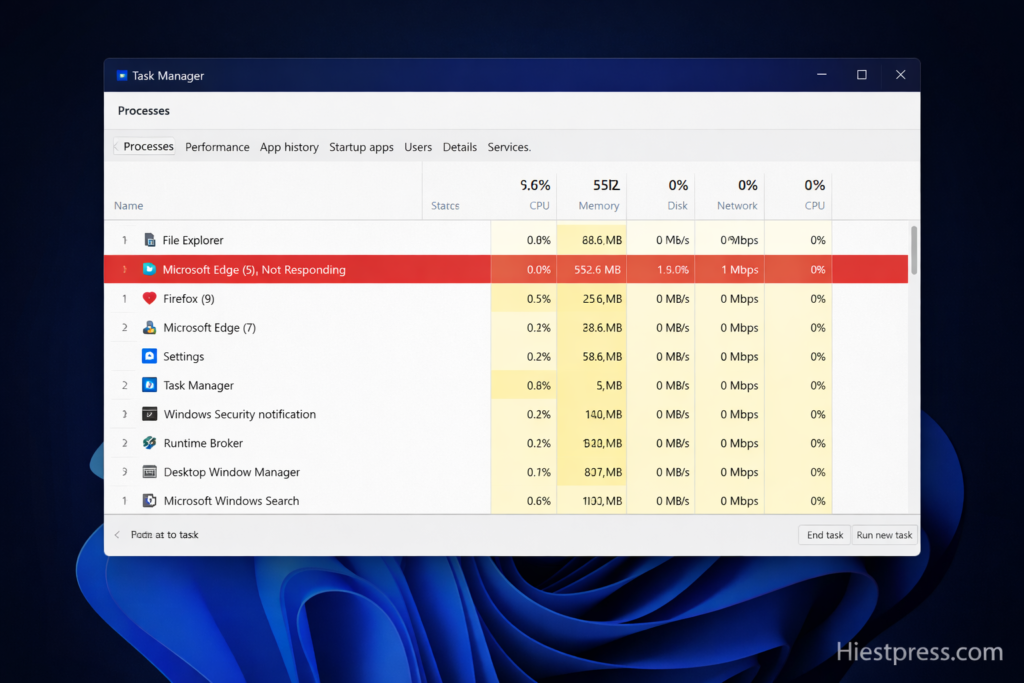
This is the fastest fix and handles a surprising number of cases. Background processes can lock shared resources, causing other applications to exit without a proper error code.
- Press Ctrl + Shift + Esc to open Task Manager.
- Under the Processes tab, look for applications consuming unusually high CPU or memory.
- Right-click any suspicious process and select End Task.
- Close all remaining open applications.
- Restart your PC fully (not just sleep or hibernate).
- Try the action that triggered the error again.
If the error disappears, one of those background processes was the conflict. Watch for it on the next startup.
Method 2: Update Windows
Pending or partially installed updates are a very common cause of generic error codes on Windows. Updates include bug fixes, driver patches, and security improvements that directly resolve many underlying issues.
- Press Win + I to open Settings.
- Go to Windows Update.
- Click Check for updates.
- Install all available updates, including optional ones.
- Restart your computer when prompted.
- Test whether the 0x0 0x0 error returns.
If the update itself fails with an error, that becomes the primary issue to address — search for the specific update error code to find the relevant fix.
Method 3: Update or Reinstall Device Drivers
Outdated or corrupt drivers — particularly graphics drivers — are one of the most confirmed causes of the 0x0 0x0 error, especially when it appears while launching games, video software, or other GPU-heavy applications.
To update drivers:
- Press Win + X and select Device Manager.
- Expand Display adapters (or whichever device category is relevant).
- Right-click the device and choose Update driver.
- Select Search automatically for drivers.
- Restart after the update completes.
For a full driver reinstall (more effective):
- In Device Manager, right-click the driver and choose Uninstall device.
- Check the box to delete the driver software if shown.
- Restart the PC — Windows installs a basic driver automatically.
- Visit the manufacturer’s official site (NVIDIA, AMD, Intel, or your device brand) and download the latest driver.
- Install it and restart again.
Method 4: Run SFC and DISM Scans
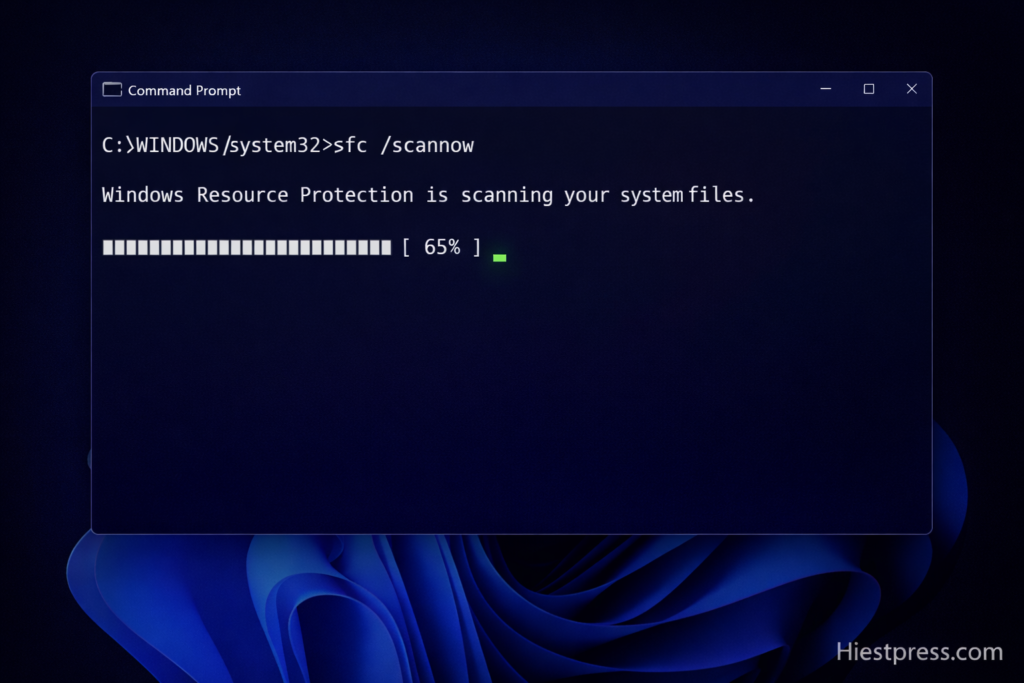
Corrupted Windows system files are a direct cause of this error. Windows has two built-in tools to find and repair them: SFC (System File Checker) and DISM (Deployment Image Servicing and Management). Run them in this order.
Run SFC first:
- Click Start, search for Command Prompt, right-click it, and choose Run as administrator.
- Type the following command and press Enter:
sfc /scannow
- Wait for the scan to finish. Do not close the window.
- Read the result. If it says “Windows Resource Protection found corrupt files and repaired them,” restart and test.
If SFC cannot repair everything, run DISM:
DISM /Online /Cleanup-Image /RestoreHealth
This downloads clean system image files directly from Microsoft’s servers and uses them to repair deeper corruption. It requires an internet connection and can take 10–20 minutes. Restart when it completes.
Method 5: Perform a Clean Boot
A clean boot starts Windows with only Microsoft services running, disabling all third-party startup programs and services. This is the best way to confirm whether a software conflict is causing 0x0 0x0.
- Press Win + R, type
msconfig, and press Enter. - On the Services tab, check Hide all Microsoft services, then click Disable all.
- Switch to the Startup tab and click Open Task Manager.
- Disable every startup item listed.
- Close Task Manager, click OK in System Configuration, and restart.
If the error no longer appears after the clean boot, a disabled service or startup program was the cause. Re-enable them in small batches — restarting each time — until the error returns. That batch contains the culprit.
Method 6: Fix Registry Errors
The Windows registry stores configuration data for the OS and all installed programs. Invalid, leftover, or broken entries — often caused by improper uninstalls or interrupted installs — can trigger generic failures that surface as 0x0 0x0.
Windows includes a basic registry check through its built-in tools, but you can also run a targeted check manually:
- Press Win + R, type
regedit, and press Enter. - Before making any changes, back up the registry: click File → Export, save the file somewhere safe.
- Navigate to:
HKEY_LOCAL_MACHINE\SYSTEM\CurrentControlSet\Services - Look for entries related to the application or driver that triggers the error.
- If you find obvious duplicates or entries pointing to non-existent file paths, you can delete them — but only if you are certain they are invalid.
Important: Be cautious in the registry. Deleting the wrong key can cause additional problems. If you are not confident, skip this step or use a reliable free tool like CCleaner’s Registry Cleaner (Free version) which scans and flags invalid entries safely.
After any registry changes, restart the PC and test.
Method 7: Run Disk Cleanup and Check Disk Health
Junk files, corrupted temporary data, and bad sectors on the drive can all produce silent failures that generate 0x0 error codes. This two-part step clears the clutter and checks drive integrity.
Run Disk Cleanup:
- Press Win + R, type
cleanmgr, and press Enter. - Select your system drive (usually C:) and click OK.
- Check all available categories, then click Clean up system files for deeper cleaning.
- Click OK to confirm.
Check disk health with CHKDSK:
- Open Command Prompt as administrator.
- Run:
chkdsk C: /f /r - Type Y when asked to schedule the scan on next restart.
- Restart your PC and let the scan run fully — it checks for bad sectors and attempts to recover readable data.
If CHKDSK reports a significant number of bad sectors, your drive may be failing. Back up your data immediately.
Still Getting the Error? Advanced Steps
If all seven methods above have not resolved it, consider these deeper approaches:
Check Windows Event Viewer: The Event Viewer logs detailed records of every system event, including failures that do not produce visible messages. Open it by pressing Win + R, typing eventvwr, and pressing Enter. Look under Windows Logs → Application and Windows Logs → System for entries flagged as Error or Critical, timestamped around when the 0x0 0x0 error occurred. The Event ID and description there will often point directly to the root cause.
Test your RAM: Faulty memory causes random, hard-to-diagnose errors. Press Win + R, type mdsched, and run the Windows Memory Diagnostic. It requires a restart and runs automatically. If it reports errors, the RAM module may need to be replaced.
Perform a Repair Installation of Windows: A repair install (also called an in-place upgrade) reinstalls Windows system files without wiping your personal files or applications. Download the Windows 11 or Windows 10 Media Creation Tool from Microsoft’s official site, run it, and choose Upgrade this PC now while keeping files and apps. This is far less drastic than a full reset and resolves errors that even SFC and DISM cannot fix.
Full Reset as a Last Resort: If nothing else works, go to Settings → System → Recovery → Reset this PC. Choose Keep my files to preserve personal data while reinstalling the OS. This is the nuclear option but resolves virtually every software-related cause of the error.
Myths About the 0x0 0x0 Error
A lot of information online about this error is misleading. Here are the most common myths:
“It is a dangerous virus.” 0x0 is a number, not malware. It can appear when malware causes damage, but the code itself poses no threat.
“You need a paid repair tool to fix it.” Every fix in this guide uses tools already built into Windows. Paid PC cleaners are not necessary and some are outright scams.
“It only affects Windows 10.” This error appears on Windows 10 and Windows 11. The troubleshooting steps in this guide apply to both.
“It always means your PC is permanently damaged.” In the vast majority of cases the cause is a corrupted file, outdated driver, or software conflict — all fully reversible without hardware replacement.
Frequently Asked Questions
Is 0x0 0x0 serious? Not inherently. The code itself just means no specific error information was captured. The severity depends on what caused it. A one-time occurrence after a crash is usually minor. Repeated failures suggest something needs attention.
Why does 0x0 0x0 only appear in one app? When it is isolated to one program, the problem is almost always specific to that application — a damaged installation, incompatible version, or conflicting configuration. Repair or reinstall that app before touching the rest of the system.
Can I ignore this error if it happened once? If the error appeared once, did not return after a restart, and your system is running normally, it is safe to monitor and wait. If it repeats, work through the fix methods above.
What if the error appears during Windows installation or update? This usually points to a corrupted update file or a conflict with existing software. Try running Windows Update in clean boot mode (Method 5), or use the Windows Update Troubleshooter found in Settings → System → Troubleshoot → Other troubleshooters.
Does 0x0 0x0 mean my hard drive is failing? Not necessarily, but it is one possibility — especially if you also notice slow performance, frequent crashes, or files that cannot be opened. Run CHKDSK (Method 7) and check the results.
Prevention: Stop This Error Before It Happens
Good system habits eliminate most of the conditions that lead to 0x0 0x0:
- Keep Windows and drivers updated. Most crashes trace back to outdated components.
- Only install software from official or reputable sources. Cracked or pirated software frequently brings broken installers and corrupted files.
- Do not run two antivirus tools simultaneously. Conflicting security tools regularly cause process failures.
- Shut down properly. Forced shutdowns during updates or disk writes are a leading cause of system file corruption.
- Create restore points before major changes. Before installing new drivers or software, create a restore point via Control Panel → System → System Protection. This lets you undo the change in minutes if something breaks.
- Run CHKDSK and SFC periodically. Catching file system issues early prevents them from snowballing into larger errors.
The 0x0 0x0 error is almost always fixable without professional help or paid software. Start with a restart and Windows Update. If that does not work, run SFC and DISM, update your drivers, and try a clean boot. In the majority of cases, one of these steps resolves it completely. Keep your system updated and maintained, and you are unlikely to see it again.
also checkout : How to make your smartphone run faster